Most plans start as a pile of sticky notes. The hard part is the next step: putting them in order, drawing the arrows between them, and seeing the whole thing at once without copying everything into a separate whiteboard app. Project Boards let you do that with the notes you already have, on your Mac, your Windows PC and your iPhone.
This guide walks through everything Project Boards can do, from making your first board to laying out a fifty-note flow, with real examples of what people use them for. If you just want the controls, skip to the cheat sheet at the end.
Prefer to watch? The whole guide in under two minutes. The video plays from YouTube; nothing loads from YouTube until you press play.
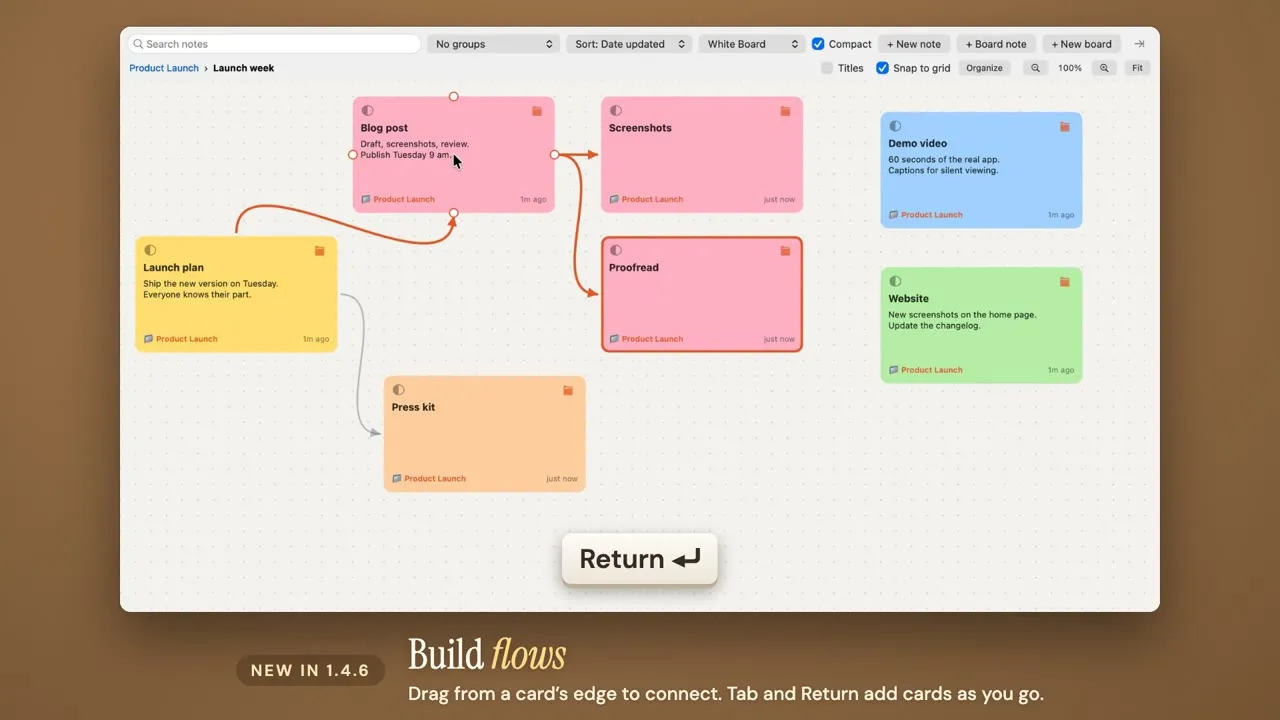
What a Project Board is
TackNote is a sticky note app that pins notes to the place they belong: an app window, a web page, a spreadsheet tab, a file. TackBoard is where every one of those notes also shows up as a card, so you can see them all in one place.
A Project Board is a board inside TackBoard. It gathers the notes for one piece of work so you can arrange them the way you think about it, and connect them with arrows into a flow, a plan or a mind map. Boards can hold other boards, so a big project can have a board for each part, and you click your way in and out of them.
What makes it different from a whiteboard app
There are plenty of whiteboard and mind map apps. Project Boards work differently in a few ways that matter day to day.
The cards are your real notes, still stuck to your work
This is the big one. A card on a board is not a copy. It is the same note that sits on top of your design file, your client's web page or your editing project. Putting a note on a board only changes where it sits on TackBoard. It stays stuck to whatever it was stuck to, so it still pops up on that window when you open it, and an edit in either place shows up in the other.
So the note that says "swap the hero image" can live on the Figma file it is about and in step three of your launch flow at the same time. You never keep two lists in step.
Boards inside boards
A board is just another card, so you can put boards on boards. A board per client, a board per job inside it, a board per stage inside that. A path under the search box shows where you are, and Escape takes you back up one level. Each level stays small enough to read at a glance.
Nothing hides inside a board
Nesting usually means losing things. Not here: search and the lists in the sidebar always look through every board at every level. Your To-dos list still finds the to-do on a board three levels down.
Built for the keyboard
Select a note and press Tab for a connected note to its right, or Return for the next one below it. You can type out a whole flow without touching the mouse, the way you would write an outline.
Private, on your own computer
Online whiteboards are built for teams, which usually means an account and a board kept on someone else's server. Your boards live in TackNote, encrypted on your Mac or PC. There is no account to make, and we never see what you write. That makes boards a comfortable place for client work, money plans and anything else you would rather not upload.
7-day free trial, no card required. One-time $24.99 after that.
Download free trialTry it: build a small flow
Here is a tiny board that works like the real one. Click a note to select it, then use the buttons, or press Tab and Return on your keyboard while the board has focus.
Select "Launch plan" and press Tab.
Making your first board
On a Mac, open TackBoard from its mark in the menu bar. Then make a board in whichever way suits what you are doing:
- From scratch. Click + New board, give it a name, then drag notes onto its card.
- From two notes. Hold Option and drag one note onto another. Both go onto a new board together.
- From a selection. Select several notes, right-click and choose Put on a New Board. Move to Board and Move Out of This Board are in the same menu.
A board's card shows its first few notes as small stickies, so you can tell boards apart at a glance. Right-click a board to open, rename or ungroup it. Ungroup moves its notes back out and removes the board, so you never lose a note by tidying up.
Double-click a board to go in. Anything you make there with + New note or + Board note lands on that board. A board note is a note that lives only on TackBoard, stuck to nothing, which is handy for the steps in a plan that do not belong to any one window. If one of them turns out to belong somewhere after all, right-click it and choose Re-stick.
Arranging the board
Inside a board, drag notes anywhere and they stay where you put them. Turn on Snap to grid to line them up as you move them. If you would rather not arrange anything by hand, click Organize and every note drops into neat rows in the order you picked under Sort.
To move a note up a level, drop it on that part of the path at the top of the board.
Connecting notes into a flow
Hover a note and four dots appear on its edges. Drag one onto another note to draw an arrow between them. Let go on an empty spot instead, and a new note appears right there, already connected. That one gesture is most of how a flow gets built: drag out, type, drag out again.
Lines carry meaning too:
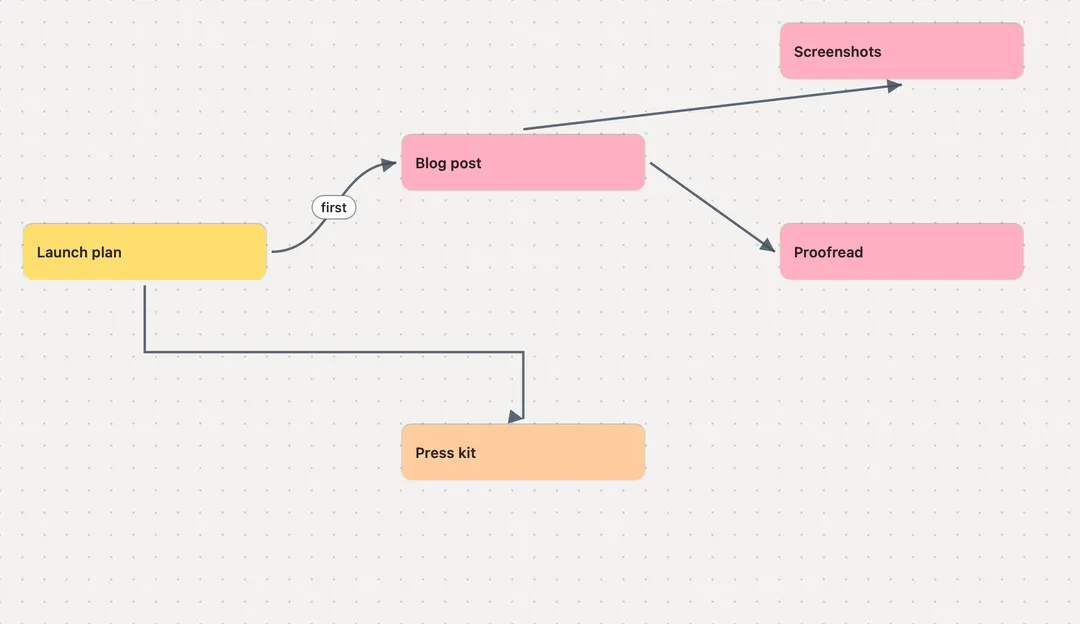
- Label a line by double-clicking it. "Yes" and "no", "first", "if approved", "blocked by": whatever the arrow means.
- Change its style from the line's right-click menu: curved, straight or elbow. Elbow lines make tidy org charts and process diagrams; curves suit mind maps.
- Choose which way the arrow points, or delete the line, from the same menu.
- Move one end by hovering the line. A dot appears near each end; drag it to another note.
Keeping a big flow readable
Flows grow. Four tools keep a large one easy to work with:
- Tidy Up. Right-click any connected note and choose Tidy Up. TackNote lays the whole flow out as a tree, to the right or downward, so a tangle of arrows becomes a clean diagram in one click.
- Fold Branch. Right-click a note and choose Fold Branch to tuck away everything its arrows lead to. The note shows how many are hidden; click the number to bring the branch back. Fold the parts you are not working on and the rest stays clear.
- Titles. Turn on Titles and every note shrinks to its title, so a fifty-note flow fits on one screen. Double-click a title to open that note.
- Zoom. Use the zoom controls at the top right, Command + and Command -, or pinch on a trackpad. Command 0 fits every note on screen, and clicking the percentage takes you back to 100%.
Ways people use Project Boards
A launch or release plan
Start with one note for the goal, then Tab out the workstreams: blog post, screenshots, press kit, website. Return under each for its steps. Label the arrow for what has to happen first. Because the "update the changelog" note is also stuck to your changelog page, it reminds you right there when you open it, and it ticks off on the plan at the same time.
A decision tree
Put the question in the first note and draw an arrow for each answer, labelled "yes", "no" or "if approved". Elbow lines and Tidy Up downward turn it into a proper flowchart. It works for support scripts, approval steps and "what do we do if the shipment is late" plans.
A mind map for an idea
Drop the idea in the middle and drag out a connected note for everything it makes you think of. Curved lines, no rules. When the map gets crowded, fold the branches you have finished with, or start a new board for the biggest idea and keep going inside it.
A story, video or course outline
One note per scene, chapter or lesson, connected in order, with side branches for ideas you might cut. Video editors can stick each note to the project it belongs to in their editing app, so the outline and the edit stay in step.
One board per client
Make a board for each client, and inside it a board for each job. The notes stay stuck to that client's files and web pages, and the board shows the whole relationship in one place. Search still finds everything across every client at once.
Debugging and research
Follow a problem the way you actually chase it: a note for each clue, an arrow for each "which led to". Stick the notes to the log file or page where you found each clue, and the board becomes the map of how you got to the answer.
Project Boards on Windows and iPhone
On Windows, TackNote has the same boards and flows. The only differences are the keys: hold Alt to drag one note onto another, press Esc or Alt Up to go back up a level, Enter for the next note below, and Ctrl with plus, minus or 0 to zoom. The Windows guide has the full list.
On iPhone, tap New board at the top of your board, or press and hold a note and choose Move to board. To connect two notes, press and hold one, choose Connect, and tap the note it leads to. Tap the dot in the middle of an arrow to label it, reverse it or delete it. Titles and Tidy Up (tree to the right or downward) are at the top of the board, and you can pinch to zoom.
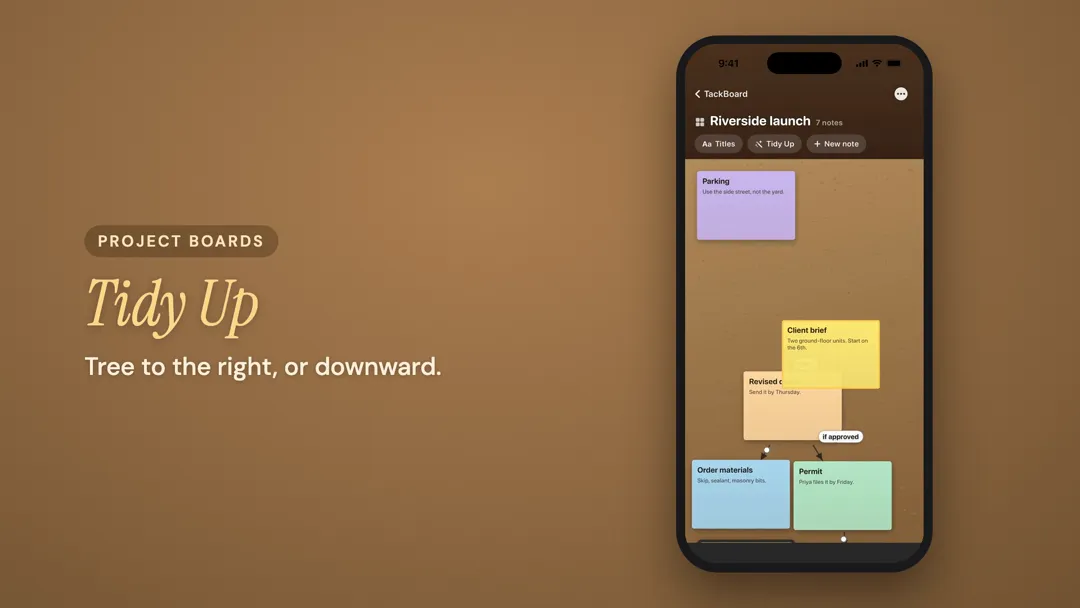
Once syncing with your Mac is turned on in TackNote's Settings on the iPhone, boards you make on your iPhone show up on your Mac's TackBoard too, with TackNote 1.4.6 or later on the Mac. Sketch the plan on your phone on the way in, then sit down at your desk and stick each step to the window it belongs to.
Cheat sheet
The Mac controls at a glance. On Windows, read Alt for Option, Ctrl for Command and Enter for Return.
- New board: + New board, or Option-drag one note onto another.
- Go in, go out: double-click a board; click the path or press Escape.
- Connect: drag a dot on a note's edge to another note, or to empty space for a new connected note.
- Add as you type: Tab for a note to the right, Return for one below.
- Label a line: double-click it. Right-click for curved, straight or elbow, arrow direction and delete.
- Lay it out: right-click a connected note for Tidy Up or Fold Branch, or click Organize for rows.
- See it all: Titles, Command 0 to fit, Command + and - to zoom.
Project Boards are part of TackNote for Mac 1.4.6 and later, TackNote for Windows 1.0.11 and later, and TackNote for iPhone 1.0.1 and later. If you are choosing a sticky note app in the first place, our roundup of the best sticky notes apps for Mac compares the options.
Build your first flow
7-day free trial, no card required. One-time $24.99 after that.
Download free trial